Innerworld Map & location

Innerworld mapping was released in v0.3.0! You can now create locations, and track where members are in your innerworld!
Creating a Location
To create a new location, you can do that in your system settings under Locations (access to edit, delete, etc) or innerworld page. A location contains the name, description, some notes, and you can assign images to reflect what the vibe of that location, or anything else is supposed to be like.
Creating your Map
To create a map, you simply go to the Innerworld page and if you haven't created a map before, you should see this:
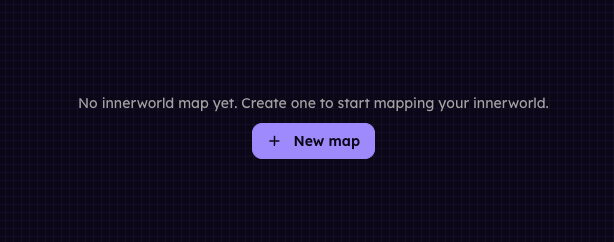
Simply click on New map, and then enter the name for the map you are uploading/working on. At the top of the screen, you will see a few options.

To upload a background, click on the background button and select the image. It will generate the map tiles in the background, and then should refresh once it's ready!
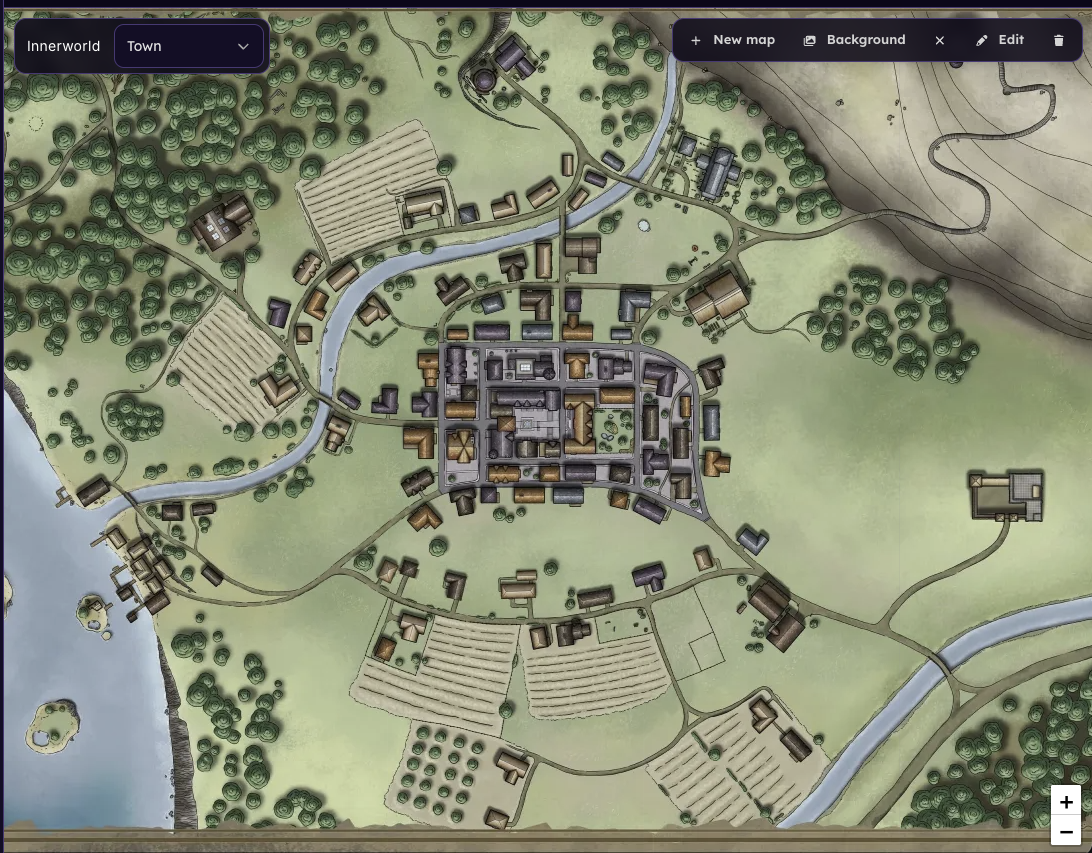
Adding locations to a map
Adding locations to a map is simple, just click edit in the toolbar, and a new bar will appear giving you some editing functionality.

Select the location you want to add to your map, and it will bring up a tool to place points, drawing the boundary of the location on the map. Once you connect the points together, it will create it and display it on the map.
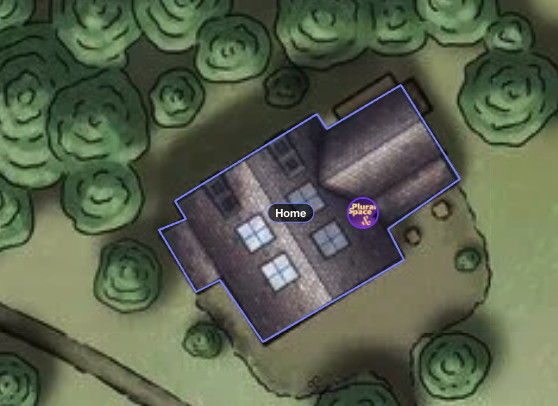
If there are any members in the location already, they should show up as soon as the location has been created and finalized.
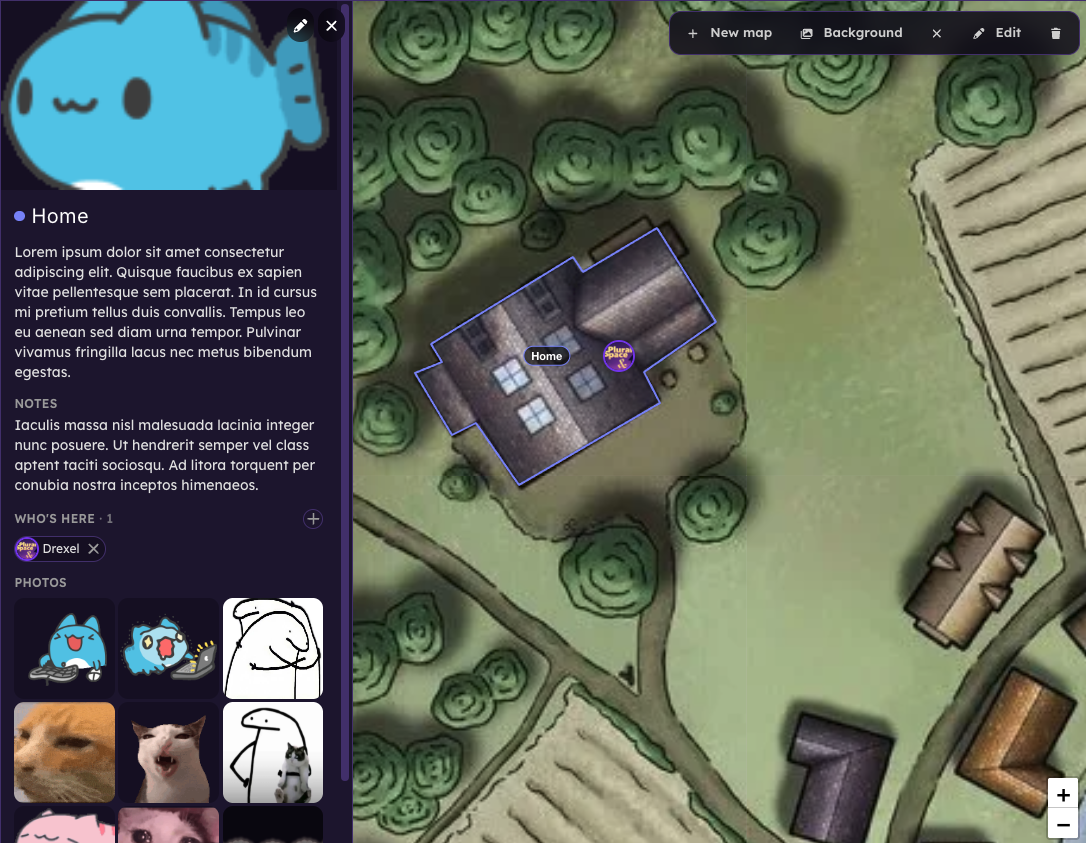
Clicking on the location will bring up a location info panel, like what Google Maps has.
Credit for map used in the example:
Ostenwold town map by Tom Cartos