Inviting Users to your System

Inviting users to your system is PluralSpace's form of friends.
There are currently 2 ways to invite someone to your system - an email or a friend code.
Where is my Friend Code
Inviting someone to your system with a friend code is simple! Ask them for their friend code (you can get it from your profile settings).
- Account setting (Profile Picture -> Top right) - Profile -> Scroll -> Friend Code
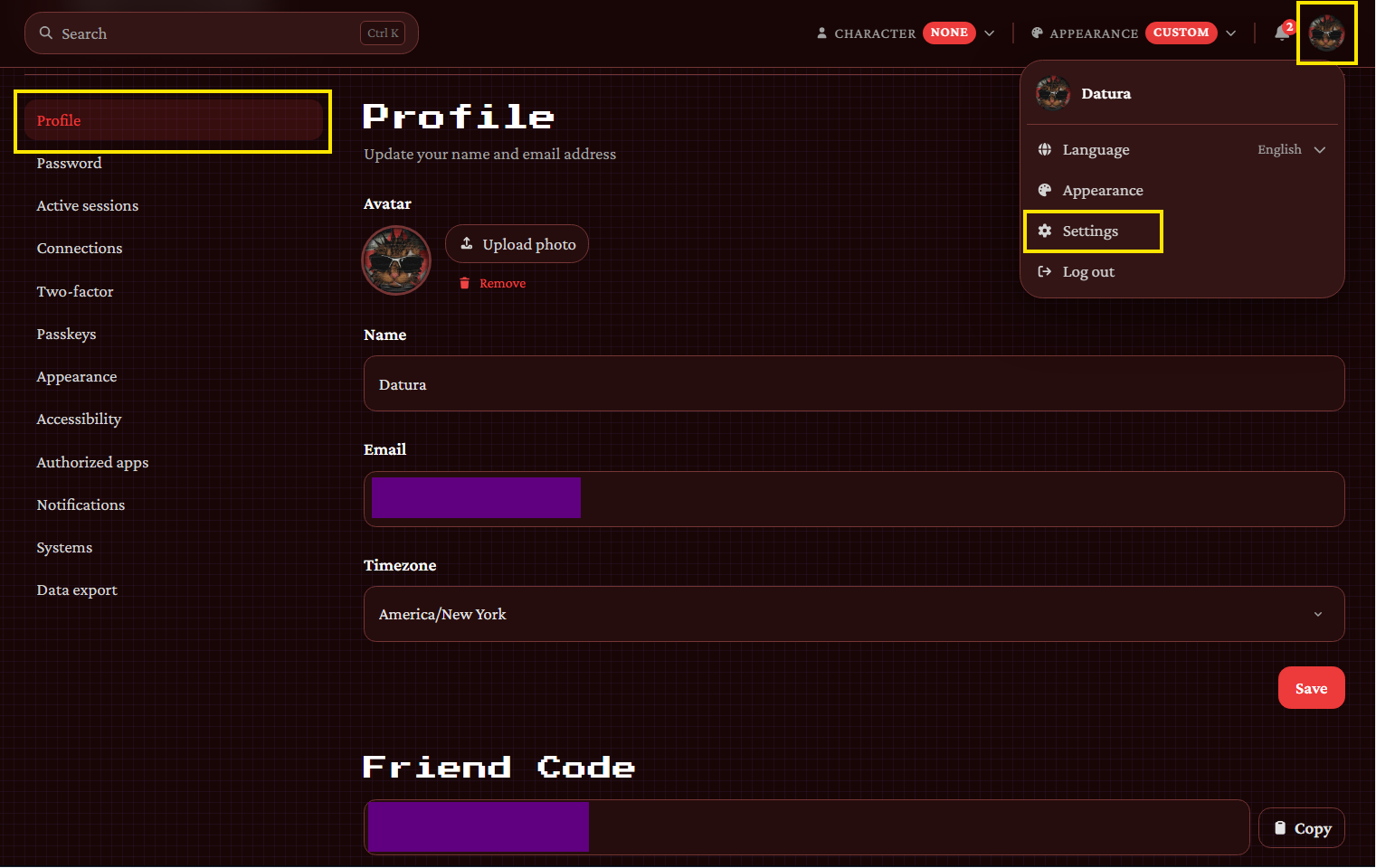
You can also regenerate your code any time. Any codes shared prior will not link to your account.
Inviting a User
Once you have the friend code or email from them, you can go to your system user settings and click on Invite User.
- System Settings -> Users -> Invite User

It will ask you to either enter their email, or their friend code. Just paste the friend code or their email into the box, select the role you want them to have (you can change this at any time later) and hit invite!
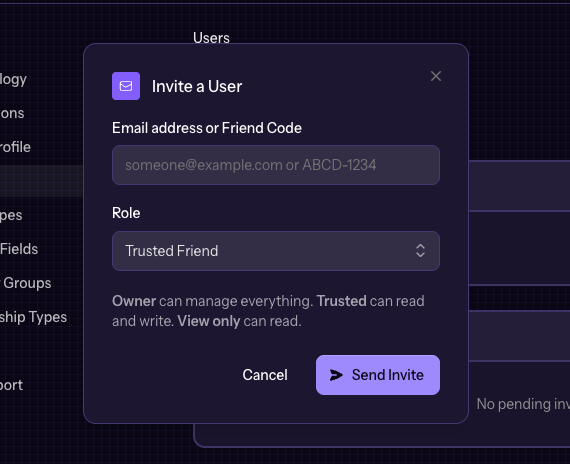
They will receive an email and notification in app from PluralSpace letting them know you invited them to your system. They can accept the invite, and that's it!
Access issues between you and your friend system?
- To view/access each other’s systems, both parties must be invited into each other’s system.
- If you want to see your friend’s system, they need to invite you using your friend code. Likewise, if your friend wants to see your system, you can invite them using their friend code.
- If you have multiple systems you would need to re-invite the individual in each systems as each system are separate permissions