Block Editor
Last updated September 12, 2026
Change the field type you go system settings -> Custom fields -> Pen Icon -> Field Type; more information about Custom Field
- Ctrl + Shift + V is a highly useful keyboard shortcut used to paste copied text without its original formatting. Also known as "paste as plain text" or "keep text only," it strips away fonts, colors, and sizes, matching the text to your document's default style.
Rundown on block editor

Add (/)
Press “/” or click the plus button that appears on the right side. Make sure the text cursor is visible and blinking—once it is, the plus button will appear.
NOTE: This is only for adding sections. To edit each sections will be included in the tune section(below)
When press/click add this well includes;
- Text
- Heading
- Unordered list
- Order list
- ChecklistTable
- Quotes
- Delimiter
- Images
- Column
- Gallery
Press “Ctrl + /” or click the 6 dots button that appears on the right side. Make sure the text cursor is visible and blinking—once it is, the plus button will appear.

Tune (Ctrl + /)
Each action has both an Add or Tune option. When you want to edit something specific or aren't sure what you're editing, click Tune—it will highlight/overlaps in a lighter purple to show what you’re modifying (for example, an entire column). Be mindful of which Tune button you select; if it’s not targeting the correct element, it won’t let you edit the specific action you intended.
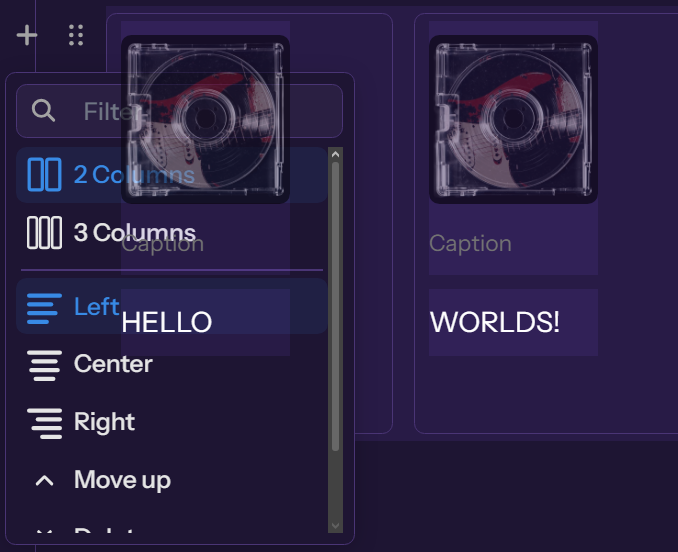
How to copy and paste from different alters profiles (PC ONLY)
Start by holding Ctrl + Shift .
- If your cursor is at the bottom of the text, press the Up Arrow key to begin selecting upward.
- If your cursor is at the top of the text, press the Down Arrow key to select downward.
Preview Video (Clickable Link)
Every single tune well includes;
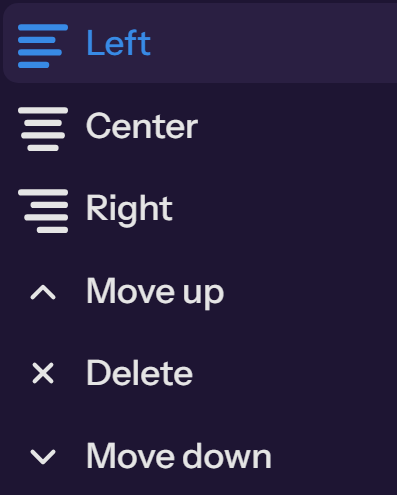
- Left
- Moving text/image to left side
- Center
- Moving text/image to the center
- Right
- Moving text/image to the right
- Move Up
- Moving the selected section up
- Delete
- Deleting the selected area (Click twice to confirm)
- Move Down
- Moving the selected section down
Listing Tunes
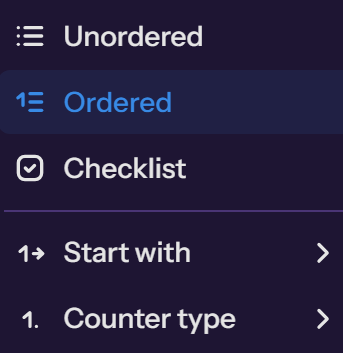
- Unordered
- Ordered (Number)
- Start with
- Counter Type
- Checklist
Table Tune
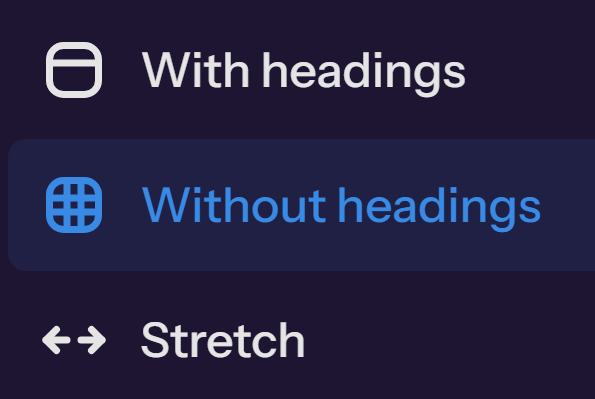
- With headings
- First row to be created as headings
- Without headings
- Collapse (Bugged?)
Table Actions
The blue outline shown(above) you can add rows above or below. The green outline shown (above)you can add columns to the right or left, as well as delete a row or column.
Quotes Tunes
- Alignment Left, Alignment Center, Alignment Right (Bugged)
- Suggest using "Left", "Center" & "Right"
Delimiter Action
- Insert a visible line or divider at the exact point where the content is displayed, as this placement will be reflected in the editor as
***
Codes (Display only)
- Put the code in the "Enter Code..." and you can click the "Plain Text" and change it into different coding programming
Image Tunes
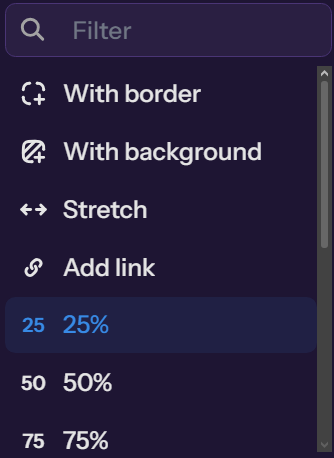
- With border
- Adding outline stroke within border of the image
- With background
- Stretch
- Fitting
- Link
- Image Size (25%, 50%, 75%, 100% - Default )
Alternative image size
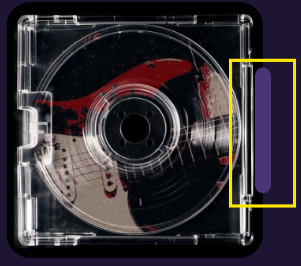
If you want the image size to be smaller then 25% shown in the image tune. The yellow outline shown you can move it to change the image size smaller then 25% but it can't be bigger then 100%.
Column Tune
- Column 2 (Default)
- Column 3 (Max)
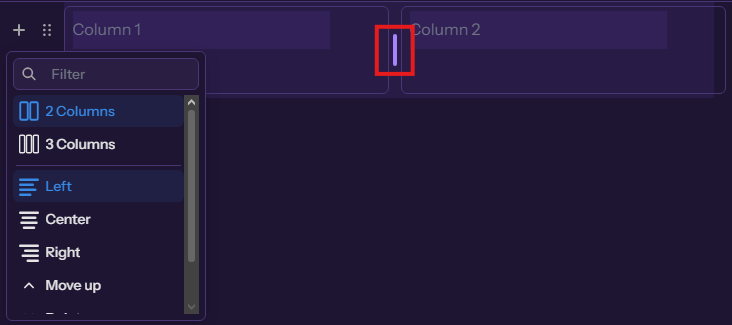
The red outline shown above, give you ability to change the sizes
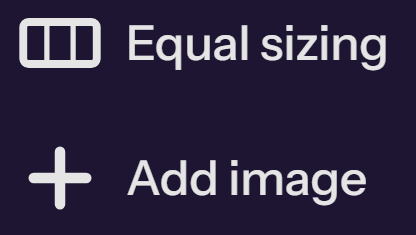
Gallery Tune
- Equal sizing
- Depending how many images you add this tune action well automatically equal all the image sizes.
- Add image
How do you edit text(characters)?
Highlight the character(texts) and there will be a popup of actions you can use




Link (Ctrl + K)
Bold (Ctrl + B)
Italic (Ctrl + I)

Marker
Highlight the selected text in yellow only

Inline Code
To add an inline code to text (for example), by selecting the word or phrase, then click the Inline Code

Underline
To add an underline to text (for example), by selecting the word or phrase, then click the underline button to apply it.
Spoiler
To add a spoiler to text (visible when hovering on PC on tap on mobile) by selecting the word or phrase, then click the spoiler button to apply it.

Color
To add a color to text is by selecting the word or phrase, then click the color button to apply it.
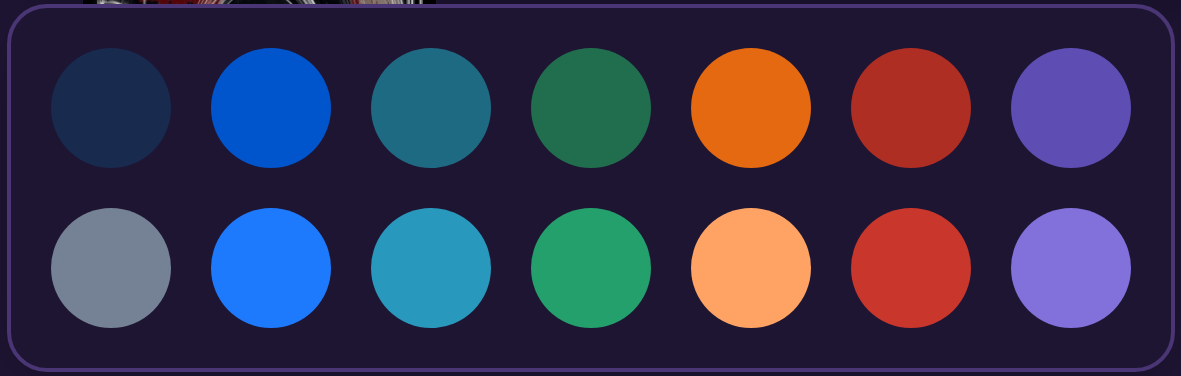
Note: You can’t customize the text. Only select and modify what is already displayed.