Markdown
Last updated September 12, 2026
Note: We're using a block editor, so some Markdown formatting may not display as it normally world in standard Markdown formatting: Block Editor
Change the custom field type you go system settings -> Custom fields -> Pen Icon -> Field Type; more information about Custom Field
Rundown of Markdown
Create a table (Currently bugged)
The first row contains the headers, and you can create as many rows as needed by separating each header with a "|" symbol.
The second column should use "|" and "--" to define the header format for it to properly close the header row.
All following rows should also use "|" to separate each column evenly.
For alignment, here’s what to do:
- For left alignment, just leave the
"---"as it is, If you want to force it or make it look nicer, you can add a":"at the beginning.
- To center align, put a
":"at the beginning and the end - To right align, put a
":"at the end
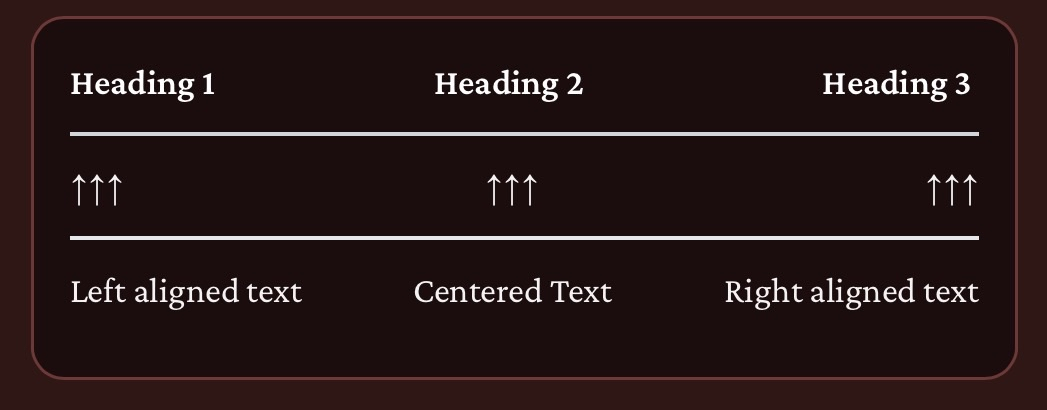
Example
| Heading 1 | Heading 2 | Heading 3 |
|------|:------:|------:|
| ↑↑↑ | ↑↑↑ | ↑↑↑ |
| Left aligned text| Centered Text| Right aligned text |

Italic (Ctrl + I)
To apply italic formatting, click the “I”. You can also type “*” before and after your text to achieve the same effect.
*Hello World!*

Bold (Ctrl + B)
To apply BOLD formatting, click the “B”. You can also type “**” before and after your text to achieve the same effect.
**Hello World!**
Bold + Italic
To apply Bold+Italic formatting, click the “B” and "I". You can also type “***” before and after your text to achieve the same effect.
***Hello World!***

Strikeout
To apply strikethrough(strikethough) formatting, click the “S” button with a line through it. You can also type “~~” before and after your text to achieve the same effect.
~~Hello World!~~

Headers (Ctrl + H)
Click the “H” button to add a heading. You can also use Discord-style headers by typing the “#” symbol beginning and space between the text. To create smaller headings, add more hashtags—up to four (####)—with each additional hashtag making the heading smaller.
# Hello World!

Spoiler
To apply Spoiler formatting, you can click the icon or type “||” before and after your text to achieve the same effect.

Bullets (Ctrl + L)
Click the Bullets button to add a (), (-) or (+) at the beginning and space between the text. Then press the Tab key to indent the text and create a sub-list.
* Hello World

Numbering (Ctrl + ALT + L)
Click the Bullets button to add a number and period (1.) at the beginning and space between the text . Then press the Tab key to indent the text and create a sub-list.
1. Hello World

Link (Ctrl + K)
To insert a link, click the chain icon in the toolbar. Alternatively, you can type it manually using the format [text](URL), replacing “text” with the display text and “URL” with the link address.

Images (Ctrl + ALT + I)
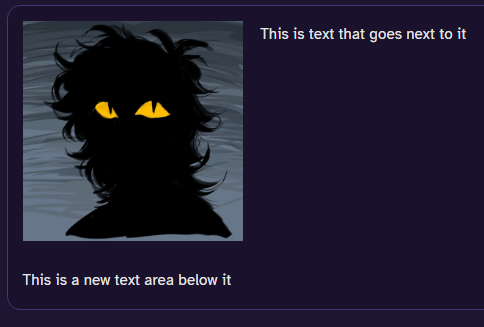
To insert an image, click the image icon in the toolbar. You can also add one manually by typing
, replacing “image URL” with the link to the image and change the size #WxH.
 This is text that goes next to it
This is a new text area below it

Quotes (Ctrl + ')
To apply Quotes formatting, click the Quotation button. You can also type “>” beginning and space between text to achieve the same effect.
> Hello World!

Block Code (Ctrl + ALT + C)
To apply Block Code formatting, click the “</>”. You can also type “```” before and after your text to achieve the same effect.
```Hello World!```

Divider
To insert a horizontal divider, click the line (divider) icon in the toolbar. You can also type five dashes (-----) to create a divider line.

Preview (Ctrl + P)
Use the preview button to see how your markdown will appear inside the box.

Markdown Guide
For additional ways to use Markdown by exploring alternative formatting options and syntax to enhance your text.